Before you begin
Creating a campaign requires the Manage Access Reviews permission. Make sure the identity provider feeds User Access Review depends on are connected and have collected data, so access to the applications you want to review is available. See Before You Begin: What User Access Review Needs.
Create a campaign
Go to User Access Review and select + Create Campaign in the top-right of the Access Reviews page.
Complete the campaign form:
Campaign Name (required) — a clear, recognizable name, for example Q3 2026 Annual Access Certification.
Description — optional context describing the purpose or scope of the review.
Due Date (required) — the deadline by which reviewers should complete their decisions. The deadline drives reminders and the "days remaining" indicator.
Identity Source (required) — the identity provider whose access data this campaign reviews. Select it before the Applications list, because the available applications depend on it.
Applications (required) — one or more in-scope applications from the selected identity source. The list stays empty until you choose an Identity Source. Access to these applications is what reviewers will certify. The application picker displays a Description, App URL, and an Enabled/Disabled status column for each application, helping you distinguish applications with identical names and identify dormant ones.
Select Create Campaign. The button is enabled once all required fields are filled.
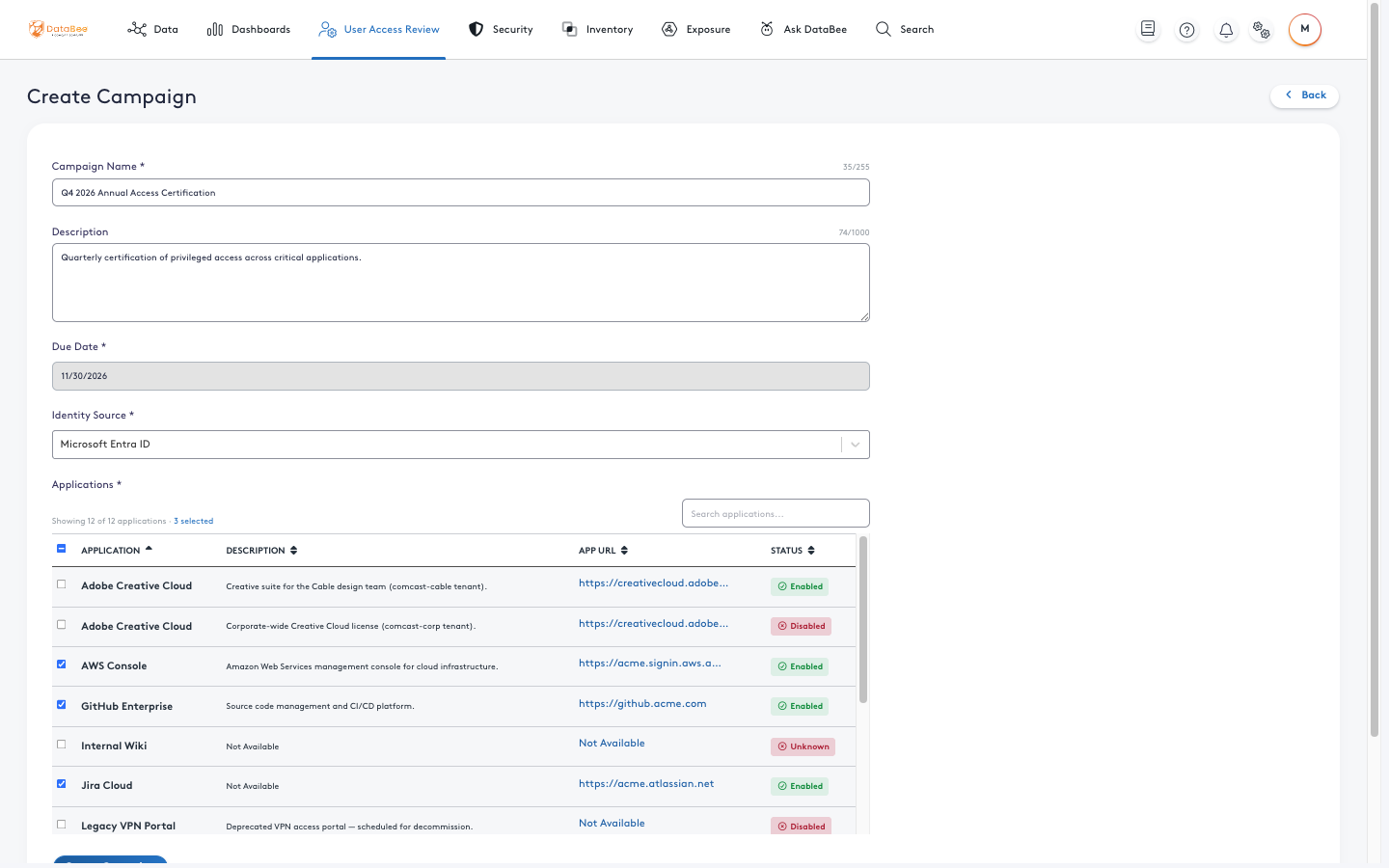
The Create Campaign form. Select an Identity Source, then choose one or more applications from the Applications list.
What happens next
When you create the campaign, DataBee assembles a point-in-time snapshot of who has access to each selected application and builds the set of review items. The campaign appears in the list with a status of Active, and reviewers can begin working through their assigned items in the Review Queue. You can track overall progress at any time from the campaign dashboard.
If the snapshot is still being prepared, the campaign indicates that processing is in progress; the data populates automatically once it is complete.